Five accessibility features to make your phone more Parkinson’s friendly
This article covers five smartphone accessibility settings and features you might find helpful if you have Parkinson’s.
The Tech Guide is full of mobile apps designed to make life with Parkinson’s easier. However, smartphones can be hard to use, especially if you have Parkinson’s. The good news is that there are a number of ways you can make your phone work better for you. Here are five settings and features you might find useful if you have Parkinson’s.
The first half of this article covers accessibility features for iPhones. If you’re an Android user, scroll down to learn how to access the same features on your Android phone.
Are there any accessibility features you find helpful that we haven’t mentioned in this article? Contact us using our form to share your own tips.
For iPhones
All of the below instructions apply to the latest version of iOS as of publishing this article (iOS 26). Instructions and availability might vary depending on your version of iOS, but the Apple Community pageopens in new tab is a great resource if you’re having trouble accessing any of these tools.
Tweak the touch settings
Tremors can make typing and tapping the right icons a challenge. Some phones even have special actions that are prompted when shaken. The good news is that there are several ways to adjust how your phone registers your touch.
Open the Settings app on your iPhone and tap ‘Accessibility’. Then tap ‘Touch’, followed by ‘Touch Accommodations’.
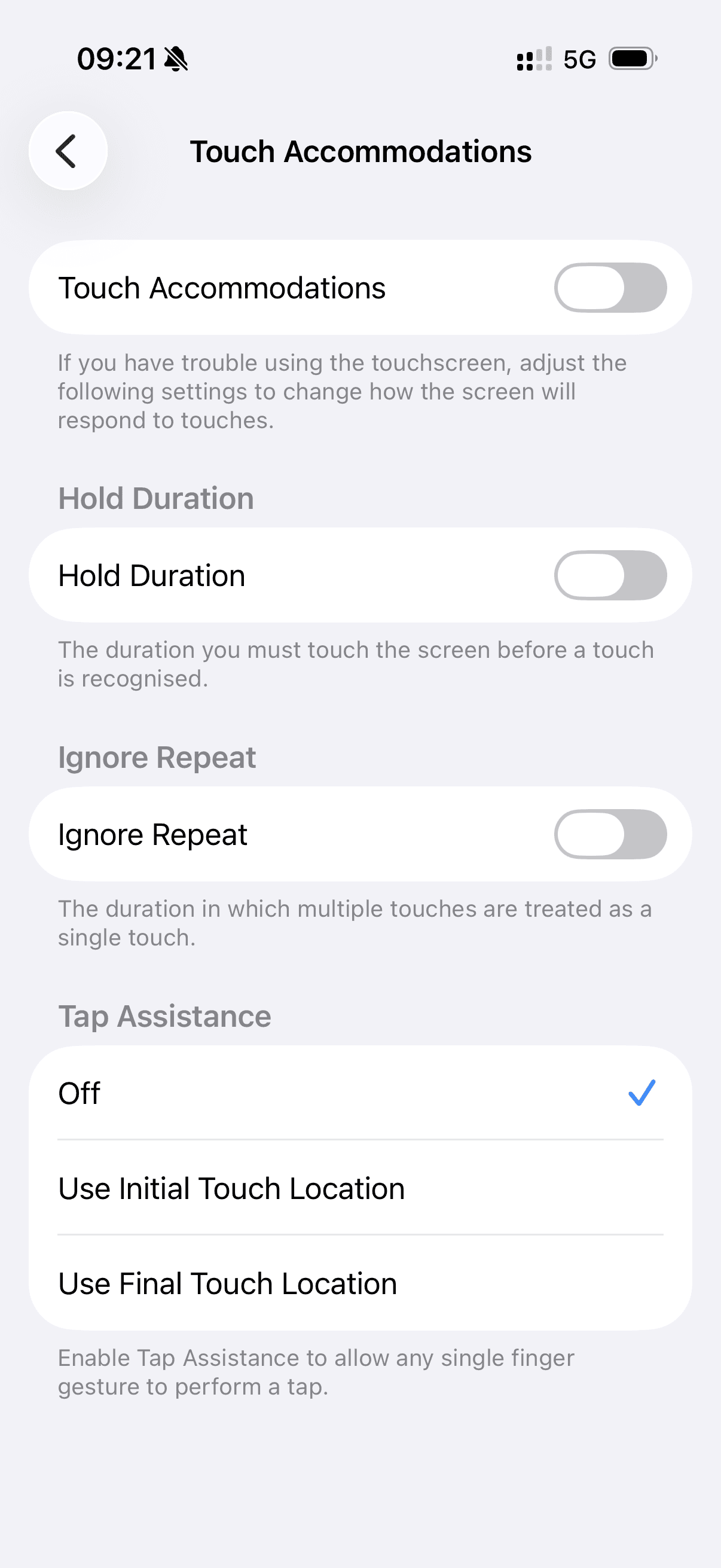
Here you can find ‘Hold Duration’, a feature that allows you to select the amount of time you need to hold the screen before each touch is registered. Increasing this can help to avoid unwanted touches caused by tremor. There’s also ‘Ignore Repeat’, which lets you set a stretch of time in which multiple taps or touches are treated as one.
If you find your phone randomly erases something you’ve typed, it may be because of the ‘Shake to Undo’ feature. You can turn this off in the same place in your phone’s Settings app.
Increase the font size
If the text on your phone is too small to read, you can increase the font size. This also helps those with poor dexterity to tap and interact with the text.
Open your phone’s Settings app and tap ‘Accessibility’, followed by ‘Display & Text Size’. Select ‘Larger Text’ and drag the slider at the bottom of the screen to your desired font size.
Make icons larger
If you find the buttons and icons on your phone fiddly to tap, you can increase their size. This makes them easier to see, too.
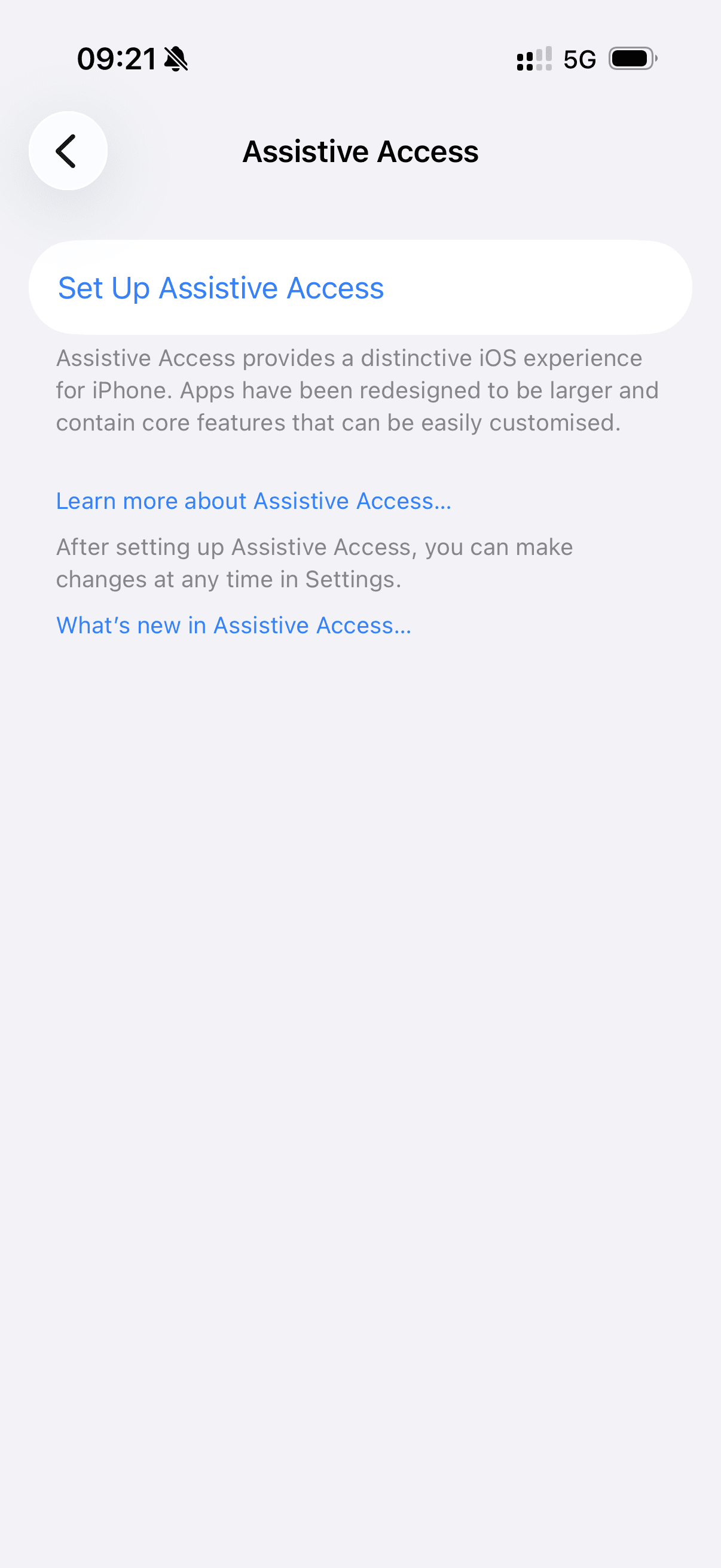
Open your phone’s Settings app, tap ‘Accessibility’ and scroll to the bottom of the page to find ‘Assistive Access’. Then tap ‘Set Up Assistive Access’ and follow the instructions onscreen to set it up.
Assistive Access lets you simplify your phone screen, enlarge icons and makes it easier to find the apps and features you need.
Talk instead of typing
Smartphones display a keyboard on the screen when you need to enter text. However, you might find it easier to speak to your phone out loud instead. Your phone will translate your words into written text for you. This can be helpful for those with dexterity issues or a tremor as the letters on the keyboard are often small and close together.
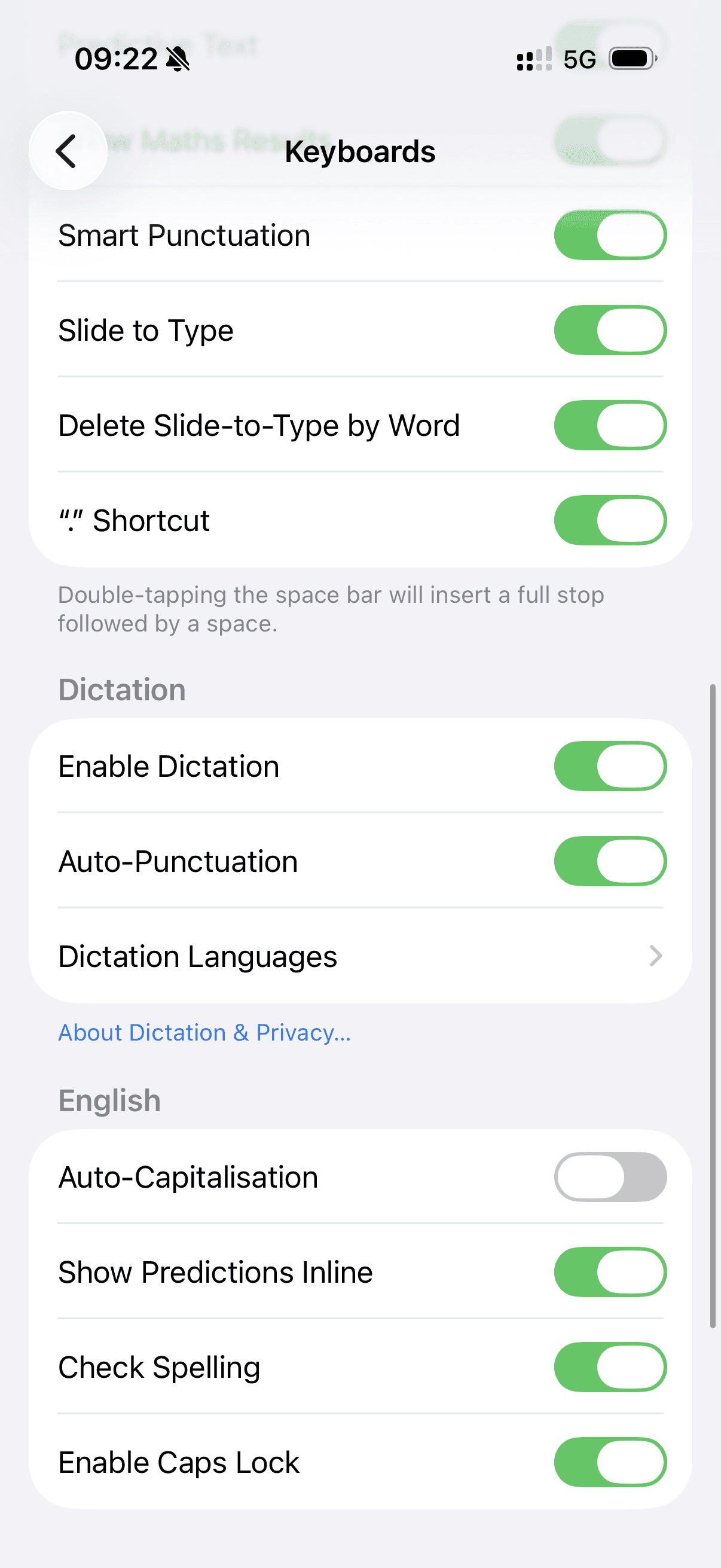
Apple calls this feature ‘Dictation’ on the iPhone. To switch it on, open your phone’s Settings app and tap ‘General’, followed by ‘Keyboard’. Scroll down to the ‘Dictation’ subheading and tap ‘Enable Dictation’.
Once you’ve completed these steps, you can tap the microphone icon beside any text field and speak to type.
Use voice commands
You can actually use your voice to do just about anything on your phone, from placing calls and sending texts, to checking the weather and playing music.
This isn’t just Siri (which can answer questions and perform background tasks in some apps). The voice command feature can do things you would typically need to tap the screen to perform, in any application, with or without an internet connection.
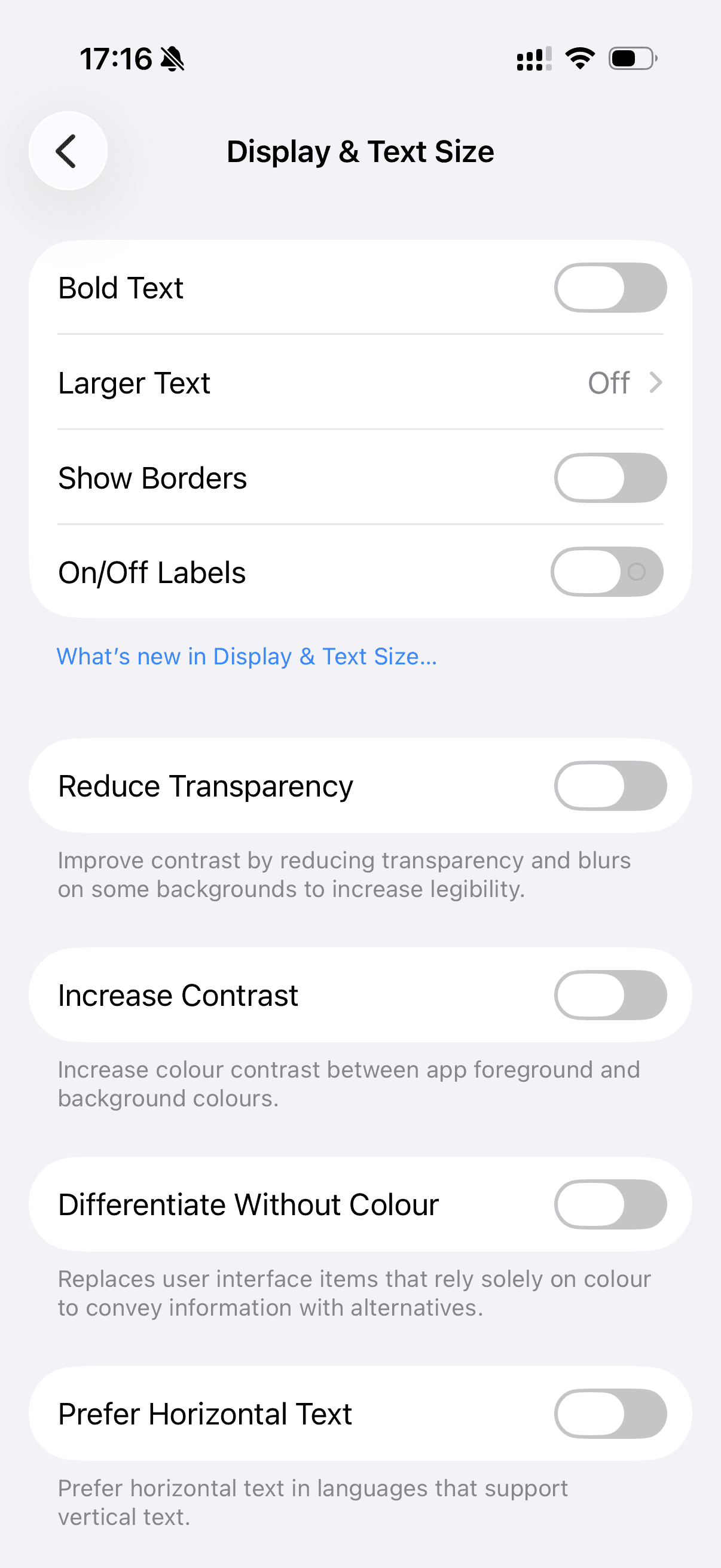
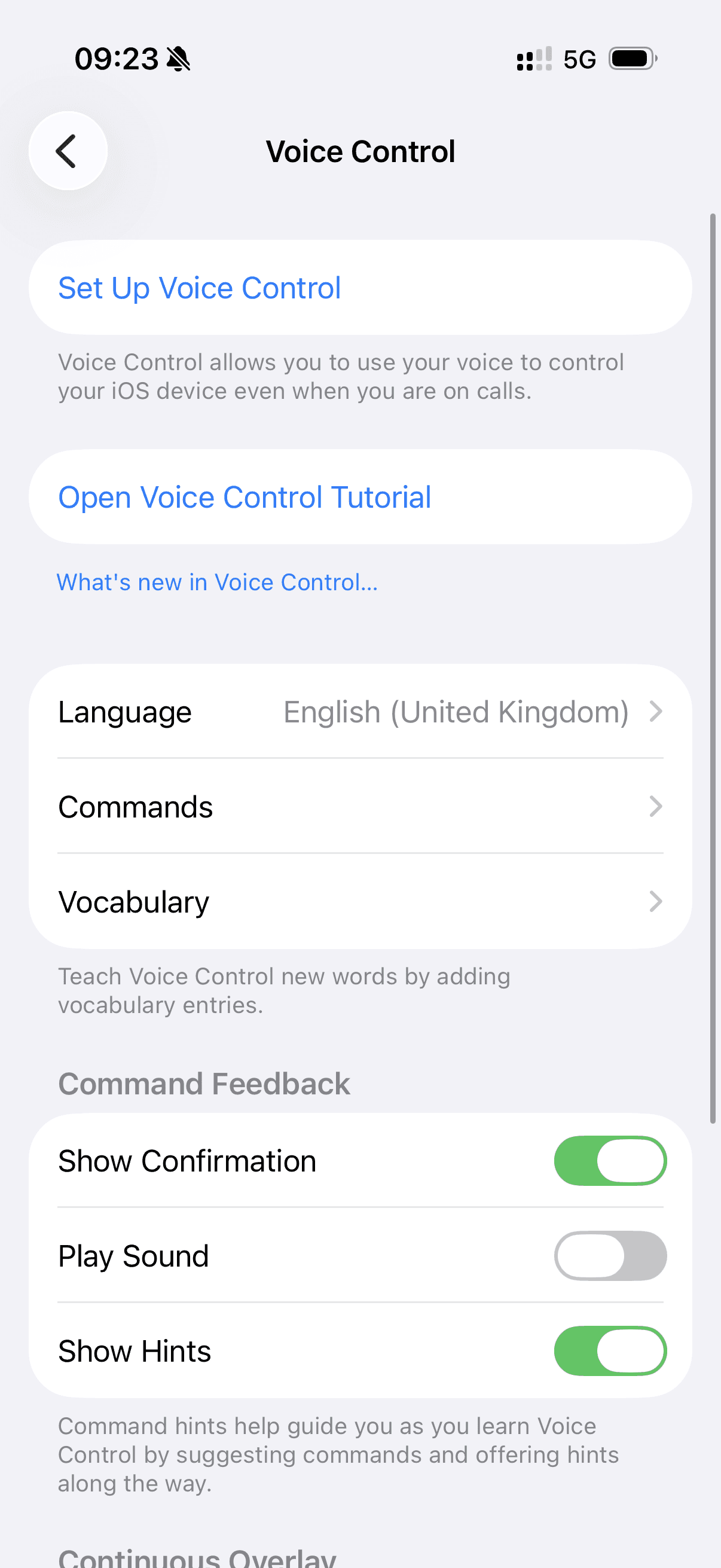
Apple calls this feature ‘Voice Control’. To switch it on, open your phone’s Settings app and tap ‘Accessibility’, followed by ‘Voice Control’. Make sure your phone is connected to the internet (This is for set-up only. You won’t need an internet connection to use voice commands.) and tap ‘Set Up Voice Control’, followed by ‘Continue’ to download a one-time file and switch voice commands on.
You can also use this settings page to change the language and create custom commands and phrases.
For Android phones
Android is the most commonly used mobile operating system worldwide, but it can look very different depending on what phone you have, with different manufacturers offering different designs and features.
We’ve done our best to ensure the instructions below apply to a range of Android phones. However, if they don’t work for you, you can contact your phone manufacturer’s support line for help setting up the same features on your specific smartphone.
Tweak the touch settings
Tremors can make typing and tapping the right icons a challenge. Some phones even have special actions that are prompted when shaken. The good news is that there are several ways to adjust how your phone registers your touch.
There are several touch settings you can configure on your Android phone. You can find them by opening your phone’s Settings app and tapping ‘Accessibility’.
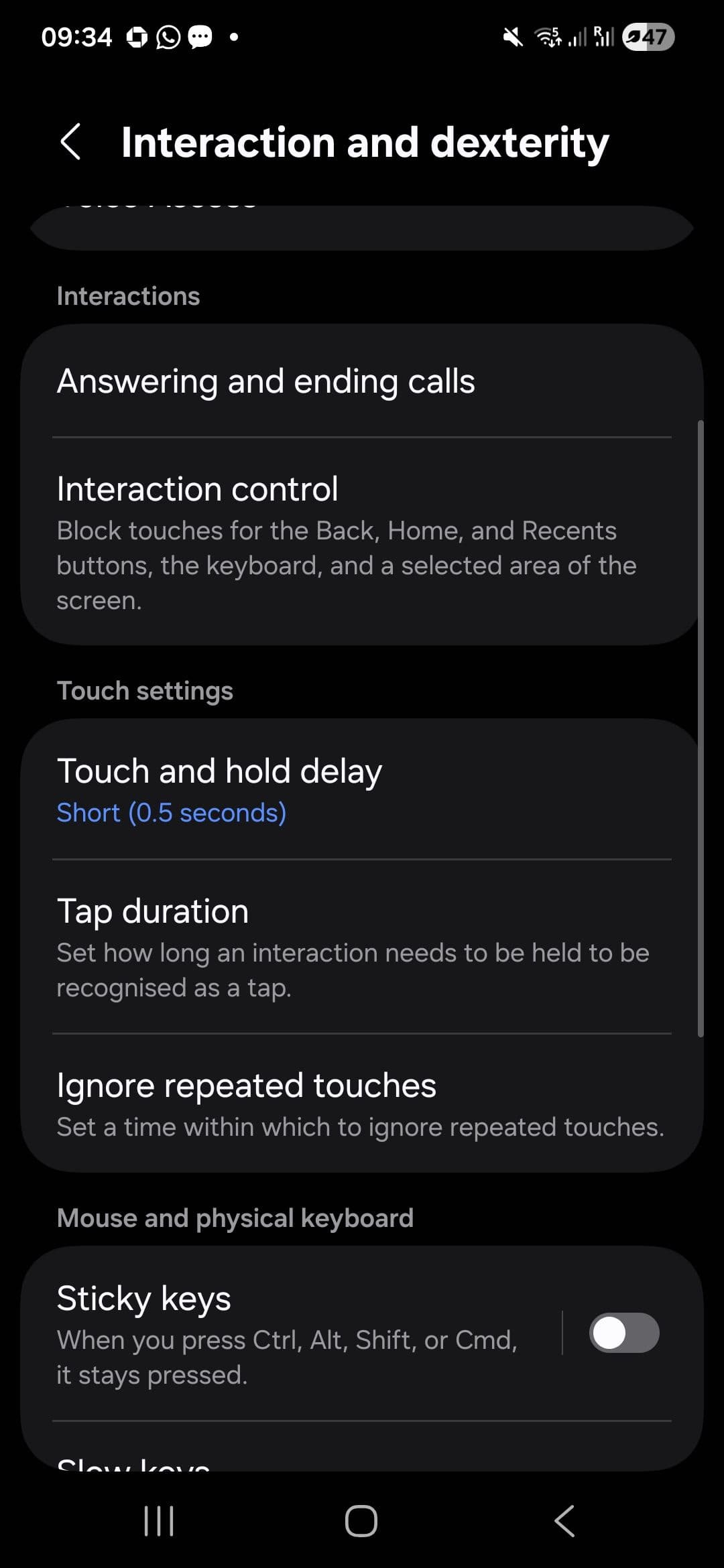
One of these features is called ‘Touch & Hold Delay’. This setting determines how long you need to press and hold on the screen before your phone registers your touch. You can choose between Short, Medium and Long, with the longer options helping to prevent unwanted taps caused by tremor.
You can also configure your Android phone to ignore consecutive taps. This setting could be called ‘Ignore Repeated Touches’ or ‘Bounce Keys’ depending on the phone you have.
Increase the font size
If the text on your phone is too small to read, you can increase the font size. This also helps those with poor dexterity to tap and interact with the text.
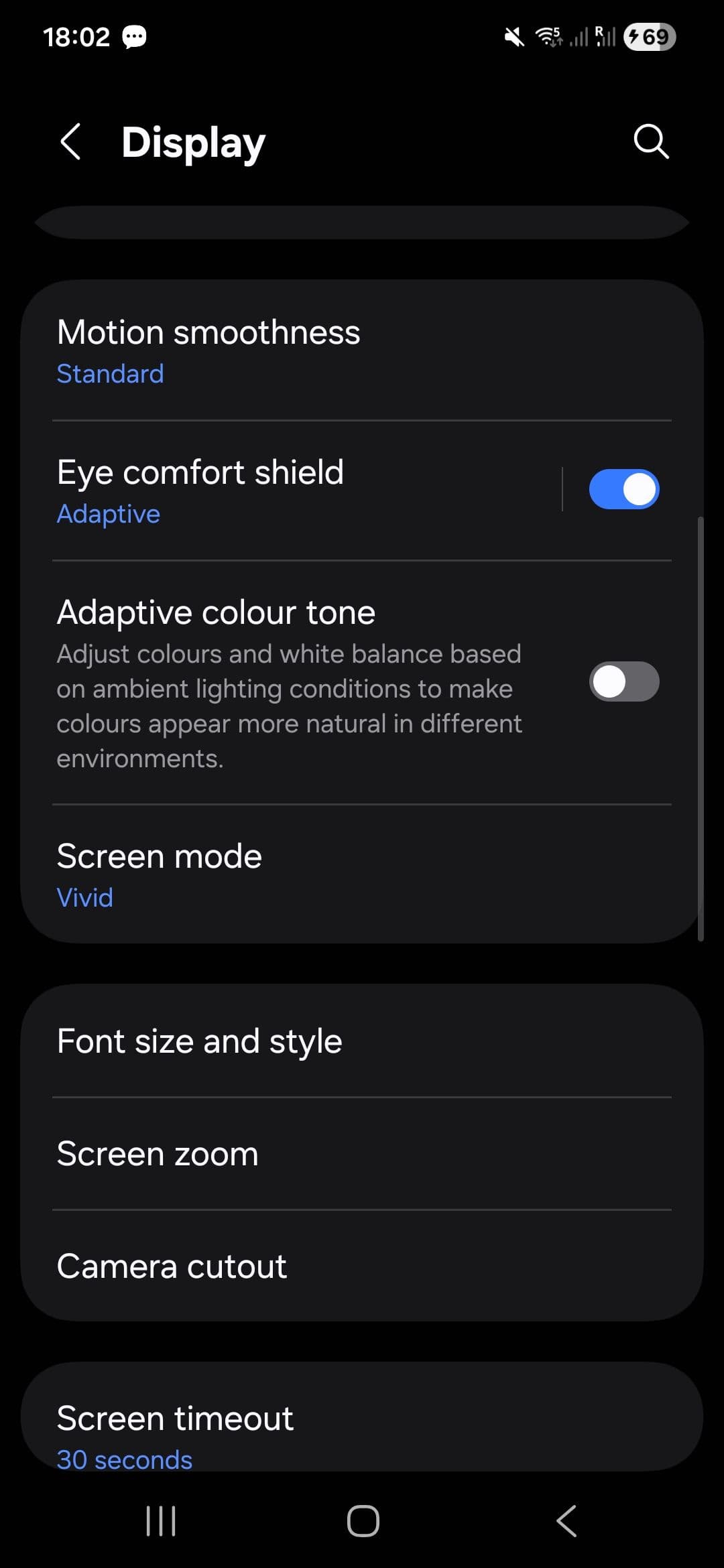
Open your phone’s Settings app and tap ‘Font Size’. Dragging the slider to the right will increase the font size, making it larger.
Make icons larger
If you find the buttons and icons on your phone fiddly to tap, you can increase their size. This makes them easier to see, too.
Different Android phones have different names for screen layout changes. Samsung calls it ‘Easy Mode’, while Google Pixel phones offer a ‘Simple View’. You may need to search Google to find out what your specific phone calls the feature (for example: “Simple View on [phone manufacturer] [phone model]”). Alternatively, you can explore your phone’s Settings app under ‘Accessibility’.
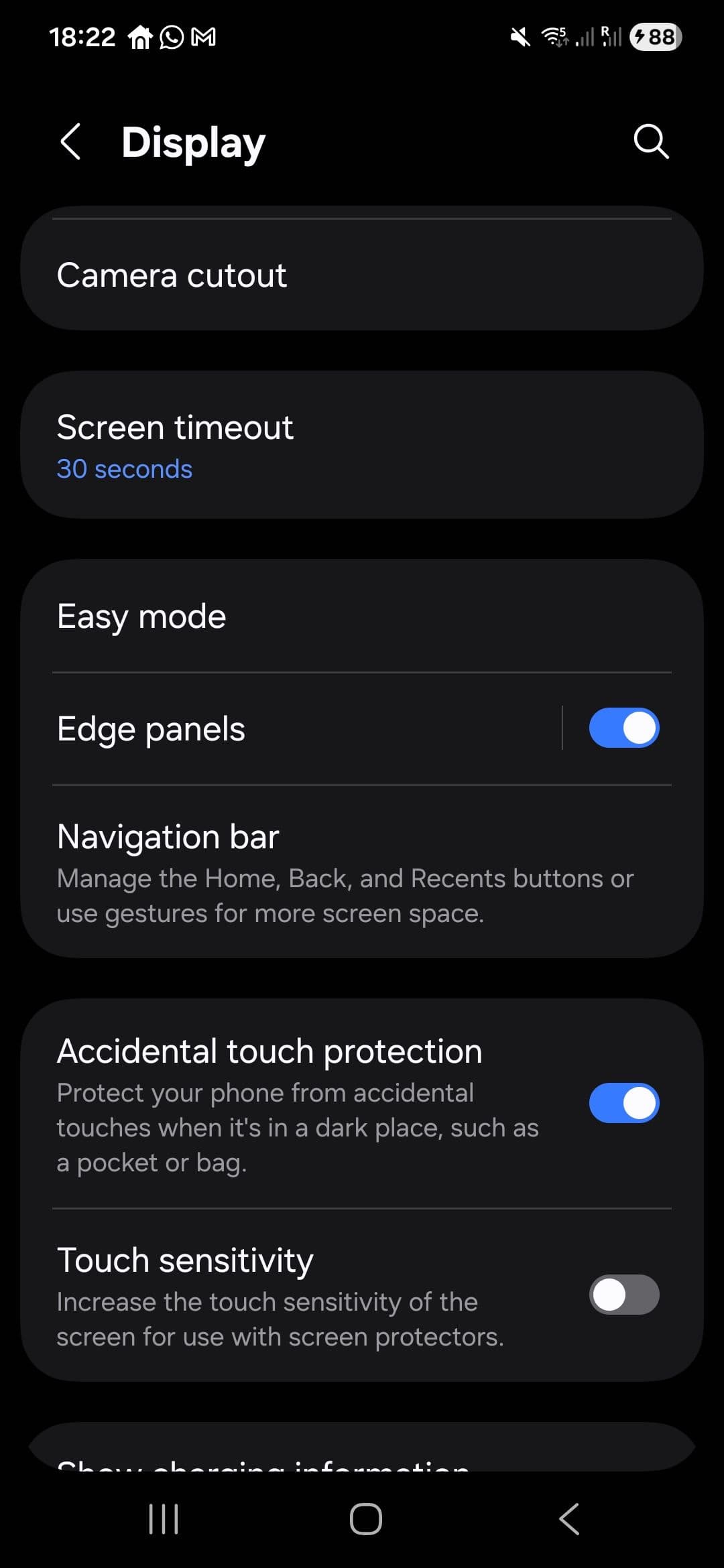
If your Android phone doesn’t come with this feature, which some don’t, there are a handful of third-party apps in the Google Play Store that let you simplify your phone’s interface and increase the icon sizes. Try searching “Simple launcher” in the Google Play Store.
Talk instead of typing
Smartphones display a keyboard on the screen when you need to enter text. However, you might find it easier to speak to your phone out loud instead. Your phone will translate your words into written text for you. This can be helpful for those with dexterity issues or a tremor as the letters on the keyboard are often small and close together.
Different Android phones have different ways to enable voice typing. This is controlled by the keyboard app they use. Most Android phones use Google’s Gboard, but others (like Samsung) have their own.
Your phone might have a speech-to-text feature ready to use. To access voice typing on Samsung phones, open your phone’s Settings app and tap ‘General Management’, then ‘Keyboard List and Default’. Next, tap ‘Default Keyboard’ and select ‘Samsung Keyboard’. Tap ‘Voice Input’, then ‘Samsung Voice Input’. Then just tap the Microphone icon at the bottom of the keyboard and speak whenever you want to type.
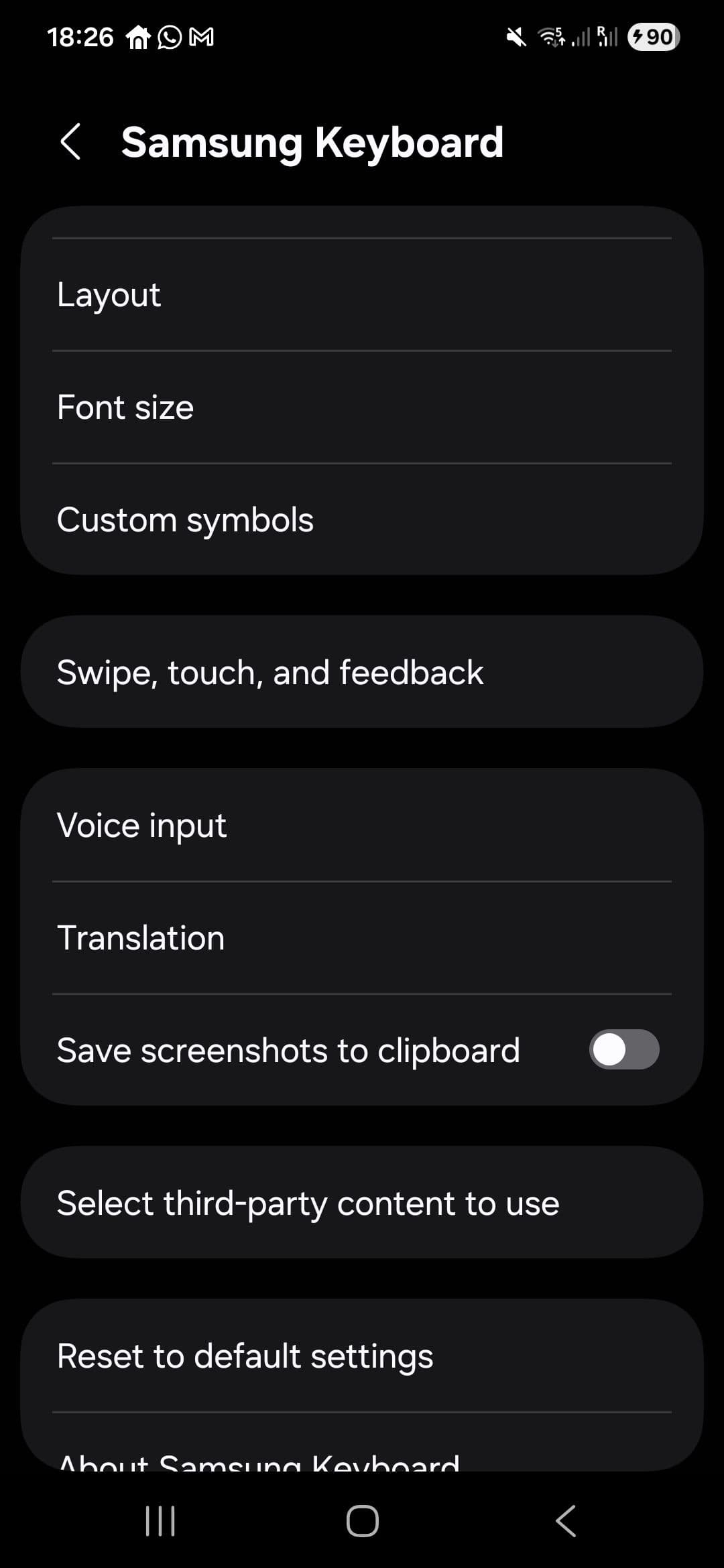
In Gboard, speech-to-text is usually enabled automatically when the keyboard is open. If you see a microphone icon on your keyboard, tap this and speak into the phone. You should see your words appear in the text field.
If you have another Android phone and can’t find speech-to-text, you can download Gboard from the Google Play Storeopens in new tab and set it as your default keyboard.
Use voice commands
You can actually use your voice to do just about anything on your phone, from placing calls and sending texts, to checking the weather and playing music.
This isn’t just Google Assistant (which can answer questions and perform background tasks in some apps). The voice command feature can do things you would typically need to tap the screen to perform, in any application, with or without an internet connection.
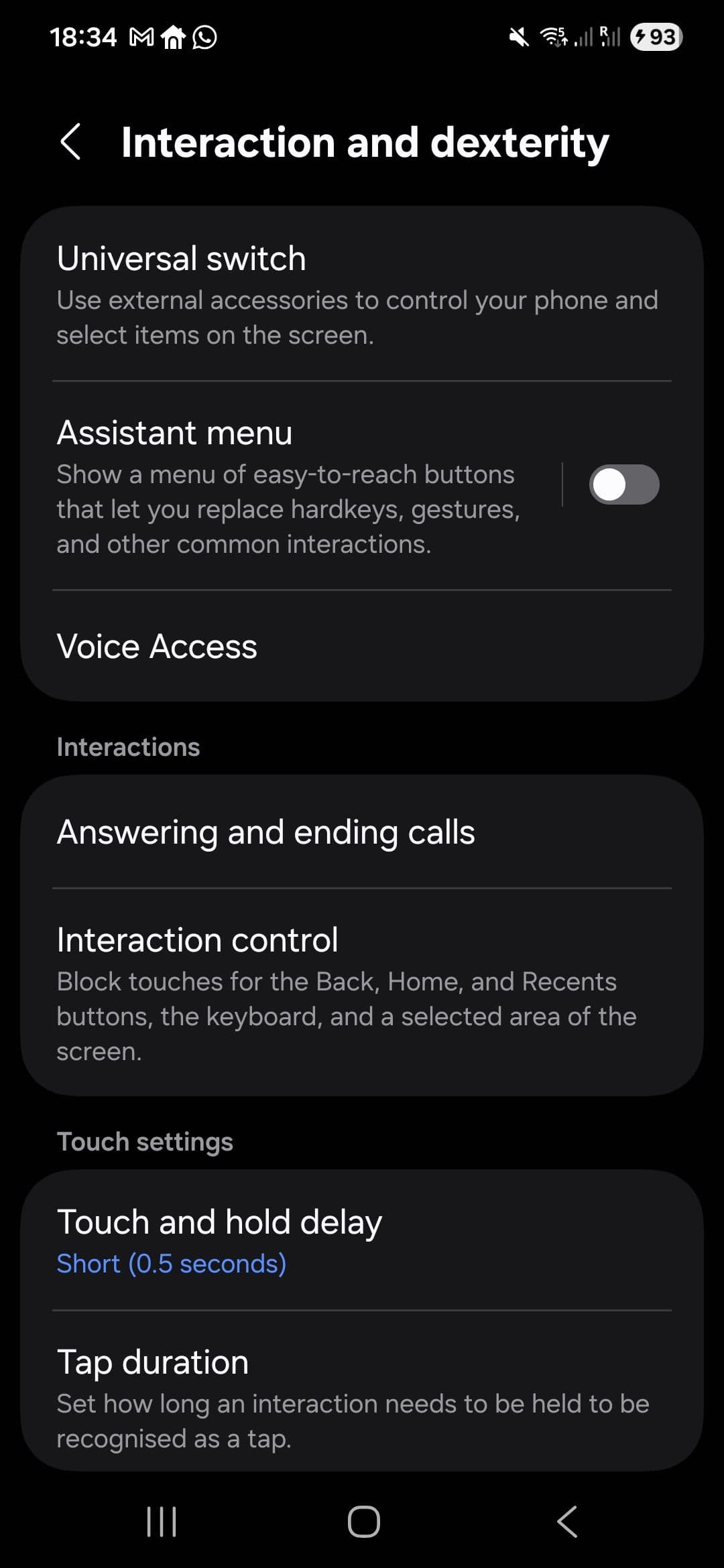
This feature is called ‘Voice Access’ on Android devices, but it isn’t always installed by default. If it isn’t, you’ll need to connect to the internet and download it from the Google Play Storeopens in new tab.
To set up Voice Access, open your phone’s Settings app and tap ‘Accessibility’. Then tap ‘Voice Access’ and turn on the Voice Access shortcut. From then on, you can tap the floating blue Voice Access button or say “Hey Google, start Voice Access” to use voice commands on your phone. For example, you could say “tap airplane mode”, “open Gmail” or “tap next”.